PS Remote Play
- 2.8
- Rating
- 10.00M
- Installs
- Free
- Price

 Analysis by App-foxy
Playing a console game from another room sounds simple until you actually try to make it part of your routine. I tested PS Remote Play as the bridge between a PlayStation console and a phone or tablet, and my impression is clear: it is most useful when you treat it as a practical access tool rather than a replacement for a television. It lets me reach my PS5 or PS4 when the main screen is occupied, when I want a quieter session, or when I need to check something without moving my setup.
This free entertainment app comes from PlayStation Mobile Inc. and is aimed at Everyone. Its basic promise is easy to understand, but the quality of the experience depends heavily on the network, the device screen, and the way you prepare the console. I found that the best results came from building a repeatable habit around it: wake the console correctly, connect with the right controller, adjust the app for the situation, and use it for the kinds of play it handles well.
The app has been available since October 27, 2014, and its current version is 9.1.0. It has passed ten million installs, which makes it a familiar option for PlayStation owners who want more flexibility. Still, its average rating is 2.8 from roughly 123 thousand ratings, with about 12 thousand written reviews. That combination tells me something important: the idea is valuable, but results can vary sharply from one household to another.
You May Also Like

 Blood Strike: 2.5 Anniversary
Blood Strike’s Loadouts Turn Every Drop Into a Tactical Gamble
A close look at Blood Strike’s custom loadouts: how fast access to signature weapons reshapes its battle royale rhythm, rewards preparation, and narrows the gap between fights.

 Pandora - Music & Podcasts
Pandora’s Music Is Easy to Start, but Harder to Recover
Pandora’s strength is its low-effort path from a seed to a station. Its weak spot is how much confidence it asks you to place in connection, setup, and quiet recovery.

 8 Ball Pool
 Is Built on Rivalries, Rematches, and Routine
A close look at the rivalries, rematches, shared routines, and unanswered safety questions that turn a quick pool match into a persistent mobile community.

 Samsung Music
’s Quiet Strength Is Playing What You Already Own
Its reach comes less from spectacle than from dependable access to a personal library. That simplicity is both the app’s strongest retention engine and its ceiling.

 AccuWeather: Weather Radar
AccuWeather Review: A Quick, Clear Forecast for Everyday Decisions
For everyday plans, the best forecast is the one you can understand quickly. AccuWeather makes rain timing, radar, and local conditions easy to act on, with a few trade-offs.

 Hill Climb Racing
Why Hill Climb Racing Still Turns Crashes Into One More Run
A tiny car, a bumpy hill and one more upgrade: Hill Climb Racing keeps resurfacing because its simple chaos makes every near-miss feel personal.
More From Our News Desk



Building a reliable Remote Play routine
I focus on the small habits that make remote sessions easier to repeat, rather than expecting one setup to suit every room and network. Keeping the console, device, and controller routine consistent can help me spot what changed when a session feels different. From there, it is worth looking at how I recover when a connection or control setup gets in the way.
Start with the console, not the phone
My first useful lesson was that Remote Play is not an independent cloud gaming service. The game still runs on your own PS5 or PS4, so the console must be available and configured for remote access. If the console is fully shut down, unavailable, or unable to connect, the app cannot magically provide a session. That makes the first step a home-console habit: leave the system in a state that allows remote access when you know you may need it.
Once the console is ready, the normal workflow is straightforward. I open the app, choose the PlayStation system, wait for the connection, and then continue from the console interface. The important difference from ordinary mobile gaming is that I am not launching a separate mobile version. I am controlling the same console environment, with the same games, saves, menus, and account context that I would see on the television.
That continuity is the strongest reason to use it. If I have a game installed on the console, I do not need to buy a second mobile edition or maintain a separate save system simply to play away from the television. I can pause in one room and continue elsewhere. For story games, turn-based titles, menu-heavy adventures, and routine progression, that feels surprisingly natural once the connection is stable.
Choose the right controller approach
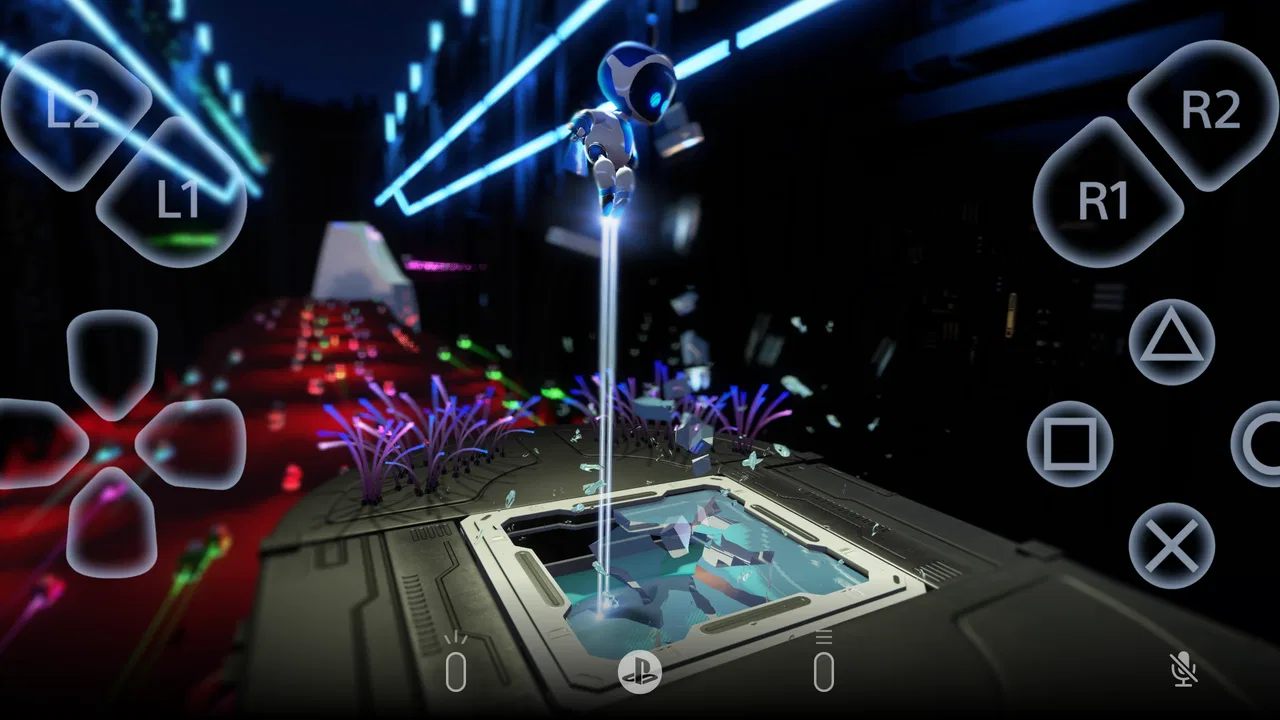
Touch controls are convenient for opening the app or navigating a menu, but I would not make them my default for demanding games. On a phone screen, virtual buttons take up space and lack the physical feedback of a DualSense or DualShock controller. They can be acceptable for a quick check, a slow-paced section, or a title with forgiving controls, but action games expose the compromise quickly.
My preferred routine is to keep a compatible PlayStation controller ready and connect it before starting a serious session. This changes the experience from “playing a game streamed to a phone” to “using the phone as a portable screen.” That distinction matters. The app supplies the remote connection, while the controller supplies the precision and comfort that many console games expect.
A controller also helps reduce accidental touches. With on-screen controls, a finger can cover important visual information or trigger an unwanted action while you are trying to reposition your hands. Physical controls do not eliminate connection delay, but they remove one separate source of frustration. If you plan to use Remote Play regularly, I consider a controller a more meaningful upgrade than simply buying a larger phone.
Use it for the situations it handles best
The most convincing everyday scenario for me is a shared television. Someone else wants to watch a program, but I have time for a short quest, inventory session, or progression checkpoint. Instead of negotiating over the main screen, I move to another room, connect the controller, and continue from the handheld device. That is where the app feels genuinely useful rather than merely novel.
It also works well for low-pressure sessions before bed or during a quiet break. I might sort equipment, complete a slower objective, read dialogue, or finish a game that does not demand split-second reactions. Remote Play gives those small pockets of time a purpose without requiring me to occupy the main television.
On the other hand, I would be cautious about using it as my only way to play competitive games. Even a brief delay or unstable image can affect aiming, timing, and confidence. A strong connection can make the experience enjoyable, but it cannot guarantee the same responsiveness as playing directly on the console. For ranked matches or games where every frame matters, the television remains the safer choice.
Understand the network before blaming the app
Remote Play depends on a chain of connections: the console, the home network, the mobile device, and sometimes the network used outside the house. When the image becomes soft, controls feel late, or the session disconnects, the cause may not be the app itself. I learned to test the same setup in the room where I plan to play instead of judging it from beside the router.
For home use, keeping the console and mobile device on a dependable network is the sensible starting point. Distance, walls, congestion, and the quality of the wireless signal all matter. Outside the home, the result becomes less predictable because the remote connection has another network to cross. I would test that situation with a low-stakes game before planning a long session around it.
A useful habit is to close unnecessary activity on the phone before connecting. This does not transform a weak network into a strong one, but it makes the session easier to troubleshoot. If the app behaves poorly, I can then separate likely network problems from device clutter, controller pairing issues, or a console that was not prepared correctly.
Settings that deserve attention
The app’s settings are worth checking before you decide whether Remote Play works for you. I pay particular attention to video quality and frame-rate choices because higher visual demands can put more pressure on a connection. When the network is inconsistent, a smoother and more reliable picture is usually more valuable than maximum sharpness.
This is one of the less obvious trade-offs: a lower visual setting can make the session feel better even though the image is less detailed. On a small screen, the difference may be less important than stable movement and readable controls. I would begin conservatively, play for a while, and raise quality only if the connection remains comfortable.
Screen size also affects the best setup. A phone is portable and easy to hold, but its controls and text may feel cramped. A tablet can make menus and subtitles easier to read, although it is less convenient to carry. I would not assume that the most powerful device is automatically the best one; the display, controller position, battery condition, and comfort over a long session matter just as much.
Before starting, I also check whether the phone is likely to switch networks or enter an aggressive battery-saving mode. Those interruptions can be more annoying than a slightly softer image. Keeping the device charged, disabling avoidable distractions, and choosing a stable location are simple steps, but they turn Remote Play from a demonstration into something I can use repeatedly.
Shortcuts and repeatable habits for faster access
Experienced use is less about hidden tricks and more about removing repeated friction. I keep the controller close to the place where I normally use the app, rather than storing it beside the television every time. I also decide in advance which room and device are best for Remote Play. That means I am not searching for hardware, moving furniture, or troubleshooting while a short free period disappears.
Another useful pattern is to prepare the console after finishing a television session. Instead of shutting everything down without thinking, I leave it ready for the type of remote access I expect to use. This does consume the convenience of instant full shutdown, so it is a trade-off rather than a universal recommendation. If I will not use the app for a while, I prefer normal console care over leaving it ready indefinitely.
I also separate “quick access” sessions from “serious play” sessions. For quick access, I accept the phone screen and use touch controls only when the task is simple. For serious play, I bring the controller, use the most stable location, and adjust the streaming settings first. This two-level approach prevents me from judging the entire app by an unsuitable five-minute experiment.
When a game supports frequent pauses or safe stopping points, I use those moments to end a Remote Play session cleanly. That is better than disconnecting during an important action and hoping the game handles it well. The habit is especially helpful when the network is shared or when I am playing outside the home, where reconnecting may not be immediate.
Where the limits become obvious
The largest limitation is that Remote Play does not remove the need for a PlayStation console. If you want a game service that works without owning a console, this is the wrong category of product. Its value comes from extending access to hardware you already own, not from replacing that hardware.
The second limitation is latency. A delayed image or delayed input can be tolerable in exploration and menus but distracting in a fast platforming section, a competitive shooter, or a precise boss fight. I would not promise myself that every game will feel equally good. The app is better understood as a flexible second screen than as a universal solution for every genre.
There is also a comfort limit. Holding a phone for a long session can be tiring, especially with a controller attached or with the device positioned awkwardly. A stand or stable surface can help, but that changes the experience from handheld play to a small temporary workstation. If you want the relaxed posture and large image of a television, Remote Play cannot fully reproduce it.
Battery use is another practical concern. Streaming a console display while maintaining a network connection can make a mobile session more demanding than ordinary reading or audio playback. I plan longer sessions near a charger and avoid assuming that a nearly full battery will always last as long as expected. This is not a reason to reject the app, but it is a reason to include charging in the routine.
How it compares with ordinary alternatives
Compared with playing directly on a television, Remote Play wins on privacy and flexibility but loses on image size, immediate responsiveness, and comfort. The television is still my first choice for a long evening, a visually rich game, or anything that depends on precise timing. The app earns its place when the television is unavailable or when I want to play somewhere else.
Compared with a separate mobile game, the advantage is continuity. I am not learning a different control scheme, starting a different save, or accepting a simplified version of the game simply because I left the room. The disadvantage is that the mobile experience depends on the console and network, while a native mobile game may be ready almost anywhere with fewer connection variables.
Compared with cloud gaming, Remote Play gives me access to my own console library and existing setup, but it is less independent. Cloud services are designed around remote servers and may be more convenient for someone without a console, while this app makes sense specifically for PlayStation owners. For me, the choice is not about which technology is universally better; it is about whether I want remote access to my own machine or a separate catalog that does not depend on it.
Who should use it, and who should skip it
I recommend trying it if you own a PS5 or PS4, regularly share a television, and have a dependable network. It is particularly appealing to players who enjoy single-player games, slower genres, backlog sessions, and the ability to move between rooms without abandoning progress. The fact that the app is free lowers the cost of experimenting, although the practical setup still depends on equipment you already have.
I would skip it if you do not own a compatible PlayStation console, dislike troubleshooting network connections, or mainly play highly competitive games where small delays are unacceptable. I would also think twice if your only available device has a small screen and you expect to play for hours at a time. In that case, a television or a dedicated handheld solution may be a better fit.
The age rating of Everyone makes the app broadly accessible, but that does not mean every connected game is suitable for every player. The app is the access method; the content still comes from the games on the console. Families should therefore judge the individual game separately rather than treating the app’s rating as a rating for the entire PlayStation library.
My verdict after settling into the workflow
PS Remote Play is at its best when it solves a specific household problem. It lets me keep playing when the television is busy, gives short sessions more flexibility, and preserves the connection to games already installed on my PlayStation. Once I use a physical controller, choose sensible streaming settings, and prepare the console in advance, the experience becomes much more dependable than a casual first attempt might suggest.
It is not flawless, and the modest average rating reflects the fact that network conditions and expectations vary. I would never describe it as a replacement for direct console play, and I would not choose it first for competitive precision or marathon comfort. But as a free entertainment app from PlayStation Mobile Inc., it offers a practical extension of a PS5 or PS4 rather than a gimmick.
My final recommendation is to judge it with the right test: use a stable setup, a controller, a forgiving game, and a realistic session length. If that combination works, you may find a valuable second way to reach your console. If it still feels delayed or uncomfortable, the problem is not that you missed a secret feature; Remote Play may simply not match your network, device, or preferred style of play.
FAQs for PS Remote Play
01What devices are compatible with PS Remote Play?
PS Remote Play is compatible with a wide range of devices including Windows PCs, macOS, iOS, and Android devices. However, it's essential to ensure your device meets the specific system requirements for smooth gameplay. High-speed internet is recommended for optimal performance, and the app is not supported on rooted or jailbroken devices.
02Do I need a PlayStation console to use PS Remote Play?
Yes, you need a compatible PlayStation console such as a PS4 or PS5 to use PS Remote Play. The app allows you to stream games from your console to your mobile device or computer, effectively turning them into additional screens for your gaming experience. A stable internet connection is also required.
03Is PS Remote Play free to use?
Yes, PS Remote Play is free to download and use. However, you must have a PlayStation Network account and own the games you wish to play. While the app itself incurs no cost, be mindful of potential data charges if you're using mobile data rather than Wi-Fi for your streaming sessions.
04Can I use PS Remote Play offline?
No, PS Remote Play requires an active internet connection to function. It streams content from your PlayStation console to your device, necessitating both devices to be connected online. A stable, high-speed internet connection is crucial for minimizing lag and ensuring a seamless gaming experience.
05How do I set up PS Remote Play on my device?
To set up PS Remote Play, download the app on your device, sign in with your PlayStation Network account, and ensure both your console and device are connected to the internet. Follow the on-screen instructions to pair your console with your device. For optimal performance, connect both devices to the same network.
Pros
- Seamless connectivity across devices.
- High-quality streaming with minimal lag.
- User-friendly interface and setup.
- Supports various controller options.
- Access to full PlayStation library.
Cons
- Requires strong
- stable internet connection.
- Limited to PlayStation console owners.
- Some features may lag on older devices.
- Battery drain can be significant.
- Not all games support remote play.

PS Remote Play
Gallery